A free SFTP client for Mac
Conchshell puts your Mac's folders and the server's side by side over SFTP, with an SSH terminal for the same host one tab away. Version 2.16.0, for macOS 12 Monterey or later on Apple silicon or Intel.
It is built for the everyday job — ship a build, pull a log, fix a config. Large files, folder sync from the server and a few file commands have limits in this version, and they are listed below rather than left for you to find.
What it does on a Mac
Two panes, Mac and server
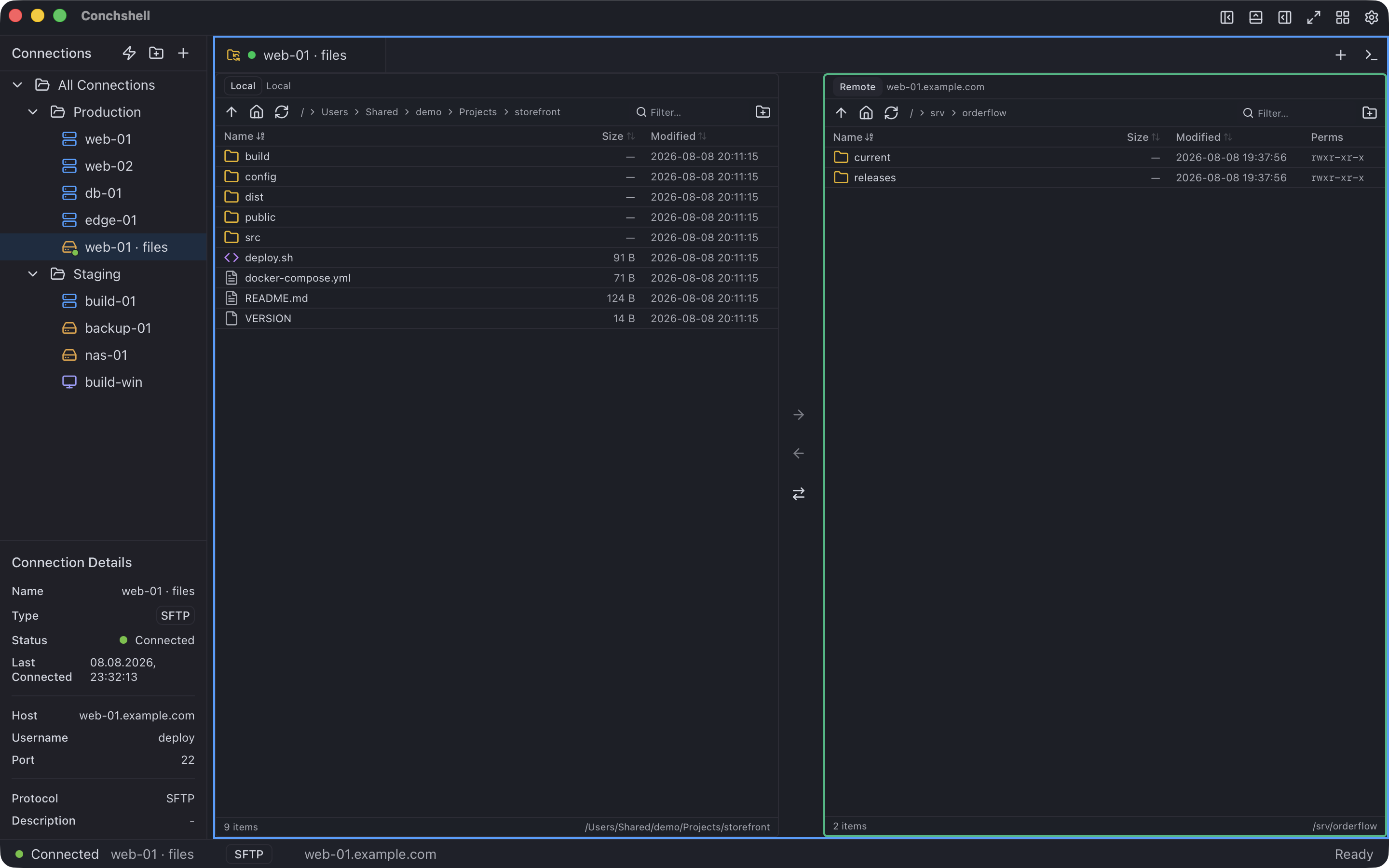
An SFTP connection opens your Mac on the left and the server on the right. Drag files across, or select them and press an arrow; drop files and folders from Finder straight onto the server pane. Each pane filters and sorts by name, size or date, and the server side shows permissions.
Folders, compared before they are synced
Whole folders go across with their contents. Sync directories compares a local folder with a server folder, lists what would be transferred or created and what conflicts, takes exclusions such as .git and node_modules, and only then does the work — in one direction at a time, Mac → server or server → Mac.
A queue that says what happened
Every file joins a queue and is marked waiting, in progress, done or failed. A failure says why, and a failed file can be retried on its own.
When you also need the shell
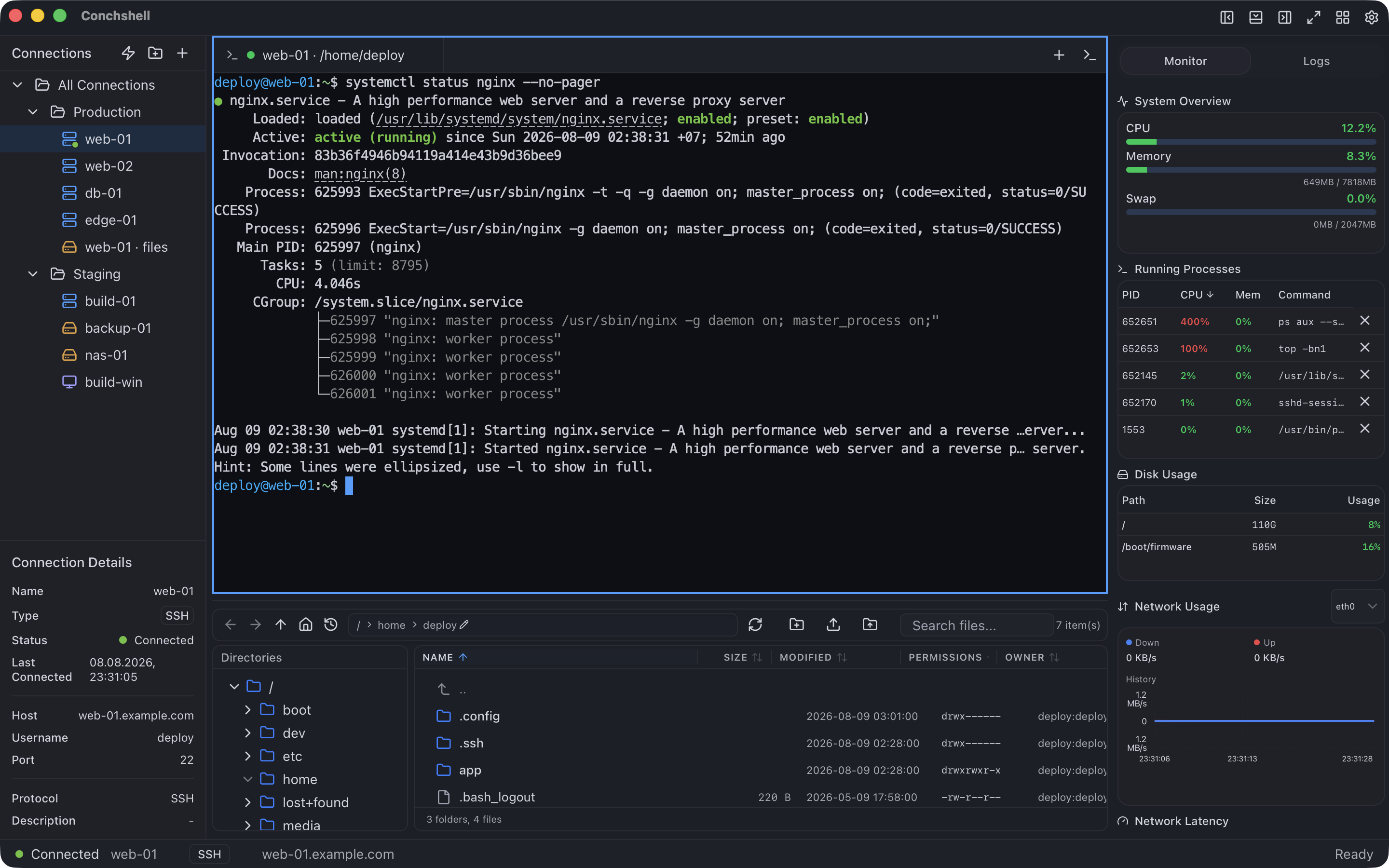
A file panel under the terminal
An SSH connection to the same server has its own file panel under the terminal. Double-click a file there and it opens in the application you chose in Settings, or in the built-in editor; each save goes back to the server, whichever editor you use.
History and pinned folders
That panel remembers the directories you visited on each server and keeps the ones you pin, and a log file opens straight into the log monitor.
Keys, jump hosts and proxies
A password or a key: OpenSSH, PEM and PuTTY .ppk files, with the passphrase asked when you connect; an SSH2 (RFC 4716) key is not read in 2.16.0 and has to be converted with ssh-keygen -i first. Keys in ~/.ssh are offered as a list, hosts in ~/.ssh/config are offered on the first screen, and a connection can go through one jump host and a SOCKS or HTTP proxy.
Host keys, checked
The first connection to a server shows its key's fingerprint in a macOS dialog, and a changed key stops the connection. Servers already in ~/.ssh/known_hosts are carried over once, unless that file hashes the host names.
What it does not do in 2.16.0
The limits of this version, so a big transfer does not find them for you.
Progress by file, not by byte
Transfers run one at a time. The queue marks a file as in progress and then done; it shows no byte count, speed or time left for the file being sent, and a file already in flight cannot be cancelled — only the ones still waiting.
Uploads go through memory, no resume
An upload is read whole into memory before it is sent; downloads are written to disk as they arrive. An interrupted transfer starts again from the beginning. Fine for code, configs and logs; for a multi-gigabyte image, use scp or rsync in the terminal next door.
Same name, replaced
An upload onto a file of the same name replaces it without asking. Look at the server pane before dropping a folder of files onto it.
Sync is one-way, and complete only going up
Sync directories runs in one direction at a time; there is no two-way sync. Mac → server sends new and changed files. Server → Mac only refreshes files you already have locally: files that exist only on the server are not listed or fetched in 2.16.0, so copy those from the server pane.
Rename and New Folder
On macOS these two commands do not open their name prompt in the two-pane view in 2.16.0. Rename from the file panel under an SSH terminal, or use mv and mkdir in the terminal.
Permissions are shown, not edited
There is no permissions dialog; chmod in the terminal does it.
No ssh-agent
Keys are read from files, or from the app's own vault. A key that lives only in ssh-agent, a password manager's agent or a hardware token is not used.
No one-time codes
A server that asks for a second factor after the password is not supported.
What you need
Mac
macOS 12 Monterey or later, Apple silicon or Intel — separate native builds
Download
9.3 MB for Apple silicon, 9.9 MB for Intel
Server
Any SSH server with the SFTP subsystem, which OpenSSH enables by default
Account
Not required — there is nothing to register
Price
Free. Syncing connections between your own machines is the one paid feature — $19 once
First launch
System Settings → Privacy & Security → Open Anyway; on macOS 12, System Preferences → Security & Privacy → General. Once, on the first launch; the
download page has the details.
Questions about SFTP on a Mac
Is this SFTP client free?
Yes. SFTP, the two panes and folder sync are in the free build, with no account. The one paid feature is syncing saved connections between your own machines, $19 once.
Can I edit a file on the server in my own editor?
Yes, from the file panel under an SSH terminal: double-click a file and it opens in the application you chose in Settings, and every save is uploaded back. In the two-pane SFTP view a double-click only opens folders.
Does it use my SSH keys and ~/.ssh/config?
Yes. Keys in ~/.ssh are listed for you — OpenSSH, PEM and .ppk — with the passphrase asked at connect time and a Remember switch that is off by default. An SSH2 (RFC 4716) key has to be converted to OpenSSH first, with ssh-keygen -i. Hosts from ~/.ssh/config are offered on the first screen. ssh-agent is not used.
Can it keep a local folder and a server folder in sync?
In one direction, on request: Sync directories compares the two, shows the differences and transfers what you approve — new and changed files from the Mac to the server, or, from the server, only the files you already have locally. It does not sync both ways, and it does not watch folders in the background.
Is it good for very large files?
Not in 2.16.0. Uploads pass through memory whole and the queue does not show progress within a file, so for multi-gigabyte files use scp or rsync in the terminal.
Does it do FTP and FTPS as well?
Yes, in the same two panes. FTPS has its own page, with its own limits.
Related
The same application, from the side of the job you came for.
 Conchshell